
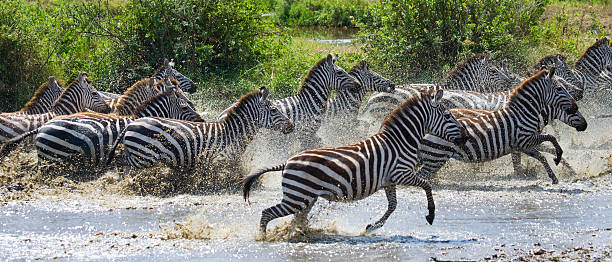
Lightroom Workflow for Safari Wildlife Photos: A Practical Editing Guide
A Lightroom workflow for safari wildlife photos helps photographers organise, edit and preserve the remarkable images captured during African wildlife adventures. Whether photographing lions in Kenya’s Maasai Mara, elephants in Tanzania’s Serengeti, mountain gorillas in Uganda’s Bwindi Impenetrable National Park or birds in Rwanda’s Akagera National Park, good editing can transform a collection of photographs into a memorable visual story.
Wildlife photography presents unique challenges. Animals move unexpectedly, lighting changes quickly, and photographs may contain distracting backgrounds, deep shadows or excessive brightness.
A single game drive can produce hundreds of images. Without an organised editing process, selecting the best photographs can become overwhelming.
Adobe Lightroom provides tools for importing, organising, adjusting and exporting photographs while preserving the original files.
However, successful wildlife editing is not about applying dramatic filters to every image. The objective is to improve exposure, colour, detail and composition while maintaining the natural appearance of animals and their environments.
This guide explains a practical Lightroom workflow for African safari photography, from importing RAW files to exporting images for websites, social media and personal collections.
Why Use Lightroom for Safari Photography?
Adobe Lightroom is widely used by photographers who need to manage and edit large image collections.
It offers non-destructive editing, meaning ordinary adjustments do not permanently change the original photograph.
Main Lightroom Benefits
| Feature | Benefit for safari photographers |
|---|---|
| Photo importing | Organises large collections |
| Rating and filtering | Identifies the best images |
| Exposure adjustments | Corrects difficult lighting |
| Colour controls | Improves natural colours |
| Cropping | Refines wildlife composition |
| Masking | Adjusts selected subjects |
| Noise reduction | Improves high-ISO photographs |
| Export presets | Prepares files for different uses |
Lightroom Classic is particularly useful for photographers managing extensive collections stored on computers and external drives.
Step 1: Back Up Your Safari Photos
Before editing, create a backup of the original image files.
Safari photographs can be difficult or impossible to replace because wildlife encounters are unpredictable.
Recommended Backup Arrangement
| Storage location | Purpose |
|---|---|
| Camera memory card | Temporary original storage |
| Laptop or computer | Working image collection |
| External hard drive | Additional backup |
| Cloud storage | Off-site protection |
Whenever possible, maintain multiple copies on separate devices.
Do not format memory cards until the images have been successfully copied and checked.
Step 2: Import Photos Into Lightroom
Begin by importing photographs into a clearly organised folder structure.
A safari involving several national parks can generate thousands of files, making organisation especially important.
Suggested Folder Structure
| Folder | Contents |
|---|---|
| Uganda Safari | All Uganda photographs |
| Bwindi Gorilla Trekking | Gorilla encounters |
| Queen Elizabeth | Lions, elephants and landscapes |
| Kenya Safari | Kenya wildlife photographs |
| Maasai Mara | Big cats and migration |
| Tanzania Safari | Serengeti and other parks |
| Rwanda Safari | Gorilla and wildlife photographs |
Use consistent folder names based on destinations and travel dates.
Step 3: Select the Best Wildlife Photographs
Wildlife photographers often capture multiple images of the same animal.
For example, photographing a lion walking across the savannah may produce dozens of similar frames.
The next step is selecting the strongest photographs.
Wildlife Photo Selection Criteria
| Feature | What to check |
|---|---|
| Sharpness | Are important details clear? |
| Eyes | Are the eyes suitably focused? |
| Composition | Is the animal positioned effectively? |
| Background | Are distractions limited? |
| Lighting | Is exposure usable? |
| Behaviour | Does the image capture an interesting moment? |
| Expression | Is the animal’s character visible? |
Lightroom’s flagging and star-rating tools make this process easier.
Recent Lightroom Classic versions also include Assisted Culling, which can help identify images based on characteristics such as subject focus. Automated selections should still be reviewed manually.
Step 4: Use Star Ratings and Collections
A simple rating system helps separate ordinary photographs from exceptional wildlife images.
Suggested Lightroom Rating System
| Rating | Meaning |
|---|---|
| 1 star | Keep for reference |
| 2 stars | Acceptable photograph |
| 3 stars | Good image |
| 4 stars | Excellent photograph |
| 5 stars | Portfolio-quality image |
Create collections for your strongest lion, elephant, gorilla, bird and landscape photographs.
This makes future editing and exporting more efficient.
Step 5: Correct Exposure and White Balance
Safari photographs are frequently captured under challenging lighting conditions.
Early morning sunlight, bright midday skies and shaded forests require different adjustments.
Essential Lightroom Controls
| Adjustment | Purpose |
|---|---|
| Exposure | Adjusts overall brightness |
| Highlights | Recovers detail in bright areas where available |
| Shadows | Reveals darker areas |
| Whites | Controls bright tonal range |
| Blacks | Controls dark tonal range |
| White Balance | Corrects colour temperature |
| Contrast | Adjusts tonal separation |
Start with small corrections.
Avoid brightening every shadow excessively, as this can make wildlife photographs look unnatural.
Step 6: Edit Golden-Hour Safari Photographs
Early morning and late afternoon light can create attractive wildlife images.
Warm sunlight often enhances landscapes and animal fur.
However, excessive editing can produce unrealistic orange or yellow tones.
Golden-Hour Editing Tips
Preserve natural warm colours.
Reduce overly bright highlights.
Maintain detail in animal faces.
Avoid excessive saturation.
Check that white balance still looks believable.
The goal is to preserve the atmosphere of the original encounter.
Step 7: Improve Wildlife Images Taken in Shade
Forest photography often involves difficult lighting.
Mountain gorillas and chimpanzees may appear very dark against bright vegetation.
Forest Photography Adjustments
| Problem | Lightroom solution |
|---|---|
| Dark animal | Adjust exposure or subject mask |
| Bright vegetation | Reduce highlights |
| Excessive green colour | Refine colour settings |
| High ISO noise | Apply noise reduction |
| Distracting background | Use selective adjustments |
| Low contrast | Adjust carefully |
Avoid making dark gorilla fur unnaturally grey through excessive shadow adjustments.
Step 8: Use Lightroom Masking Tools
Masking allows photographers to adjust specific areas without affecting the entire photograph.
Lightroom includes subject, sky and other masking options, although available controls depend on the version.
Useful Wildlife Masking Techniques
| Mask | Practical adjustment |
|---|---|
| Animal subject | Improve brightness |
| Sky | Reduce excessive highlights |
| Background | Reduce distractions |
| Eyes | Apply subtle local adjustments |
| Foreground | Balance exposure |
| Brush | Correct selected areas |
For example, a lion photographed against a bright sky may benefit from a modest subject exposure adjustment.
Avoid creating unnatural glowing edges around animals.
Step 9: Improve Sharpness and Reduce Noise
Wildlife photography often requires fast shutter speeds.
In forests or low light, photographers may increase ISO, producing visible image noise.
Lightroom provides sharpening and noise-reduction controls, including AI-assisted Denoise for supported files.
Sharpening and Noise Reduction
| Issue | Recommended approach |
|---|---|
| High ISO noise | Moderate noise reduction |
| Soft fur detail | Careful sharpening |
| Grainy shadows | Selective noise reduction |
| Fine feather detail | Preserve texture |
| Blurred moving animal | Evaluate whether image is usable |
Noise reduction cannot reliably restore detail lost through severe motion blur or incorrect focus.
Always inspect photographs at approximately 100% magnification before making final sharpness decisions.
Step 10: Crop Wildlife Photographs Carefully
Cropping improves composition by removing unnecessary space.
However, excessive cropping reduces available resolution.
Recommended Cropping Ratios
| Ratio | Common use |
|---|---|
| 3:2 | Traditional photography |
| 4:3 | General image presentation |
| 1:1 | Square social media posts |
| 4:5 | Portrait social media photographs |
| 16:9 | Website banners |
| Original ratio | Maximum composition flexibility |
Avoid cropping so closely that important body parts, horns, tails or surrounding context are unintentionally removed.
Step 11: Edit Different Animals Appropriately
Not every wildlife photograph requires identical adjustments.
Animal-Specific Editing Guide
| Wildlife | Main editing priority |
|---|---|
| Lions | Fur texture and facial detail |
| Elephants | Skin texture and natural grey tones |
| Gorillas | Dark fur and facial exposure |
| Leopards | Spot detail and background separation |
| Zebras | Preserve black-and-white detail |
| Birds | Feather sharpness and natural colours |
| Hippos | Balance highlights on wet skin |
| Giraffes | Natural colour and composition |
Subtle adjustments usually produce more believable wildlife images than aggressive editing presets.
Step 12: Avoid Overediting Safari Photographs
Wildlife photographs should represent the animals and their environments responsibly.
Overediting can damage image quality and create misleading impressions.
Common Editing Mistakes
Excessive saturation.
Unnatural eye enhancement.
Over-sharpened fur.
Extremely dark backgrounds.
Artificial-looking skies.
Strong colour casts.
Excessive noise reduction.
For documentary wildlife photography, avoid adding or removing animals or changing important behaviour-related details.
Step 13: Create Lightroom Presets
Presets save frequently used editing adjustments.
They are especially useful when processing photographs captured under similar conditions.
Suggested Safari Presets
| Preset | Suitable photographs |
|---|---|
| Golden Savannah | Warm landscape scenes |
| Forest Wildlife | Gorillas and chimpanzees |
| Bird Photography | Feather detail and colour |
| Sunset Safari | Evening landscapes |
| Natural Wildlife | General game-drive photographs |
Presets should provide starting points rather than identical final settings for every image.
Exposure and white balance still need individual attention.
Step 14: Export Photos for Websites and Social Media
After editing, export photographs according to their intended use.
A website image generally needs different settings from a large photographic print.
Suggested Export Settings
| Purpose | File format | Suggested dimensions |
|---|---|---|
| Safari website hero | JPEG or WebP | 1600 × 900 px |
| Wildlife blog image | JPEG or WebP | 1200 × 800 px |
| Tour featured image | JPEG or WebP | 1250 × 700 px |
| Square social post | JPEG | 1080 × 1080 px |
| Portrait social post | JPEG | 1080 × 1350 px |
| High-quality archive | Original RAW or suitable archival format | Full resolution |
For websites, use sRGB colour space and appropriate compression. Lightroom may export JPEG directly, while WebP conversion may require another application or workflow.
These are practical examples rather than mandatory dimensions.
Step 15: Prepare Safari Images for SEO
Wildlife photographs can improve the appearance and usefulness of tourism websites.
However, oversized image files may slow page loading.
Website Image Optimisation
Use descriptive filenames.
Resize images appropriately.
Compress files without excessive quality loss.
Add accurate alternative text.
Avoid uploading unnecessarily large originals.
Keep images relevant to the article.
Example Wildlife Image Filenames
| Photograph | Suggested filename |
|---|---|
| Gorilla in Bwindi | mountain-gorilla-bwindi-uganda.jpg |
| Lion in Serengeti | serengeti-lion-tanzania.jpg |
| Elephant in Amboseli | amboseli-elephant-kenya.jpg |
| Giraffe in Akagera | akagera-giraffe-rwanda.jpg |
Descriptive filenames help organise media libraries, while accurate alt text improves accessibility.
Step 16: Save Your Edited Wildlife Collection
After completing your edits, maintain an organised archive.
Keep the original RAW photographs whenever practical.
Back up Lightroom catalogue information and exported images.
Store final photographs in folders organised by destination, animal or project.
A consistent archive makes it easier to find photographs for future safari blogs, tour pages and marketing materials.
A Simple 30-Minute Lightroom Editing Workflow
For travellers who want to edit a small selection quickly, the following routine provides a useful starting point.
| Time | Task |
|---|---|
| 5 minutes | Import and organise photographs |
| 5 minutes | Select the best images |
| 5 minutes | Correct exposure and white balance |
| 5 minutes | Adjust colour and cropping |
| 5 minutes | Apply masking and noise reduction where necessary |
| 5 minutes | Export and check final images |
This schedule is illustrative. Complex photographs or large collections may require considerably longer.
Frequently Asked Questions
Is Lightroom Good for Wildlife Photography?
Yes. Lightroom provides useful tools for organising, adjusting and exporting wildlife photographs.
Should I Shoot RAW or JPEG on Safari?
RAW generally offers greater editing flexibility, especially when working with difficult lighting. JPEG files are smaller and convenient for immediate sharing.
Can Lightroom Fix Blurry Wildlife Photos?
It can improve perceived sharpness, but it cannot reliably correct severe motion blur or badly missed focus.
Should Safari Photos Look Highly Saturated?
Natural-looking colour is usually preferable. Excessive saturation can make wildlife and landscapes appear unrealistic.
Can I Edit Safari Photos on My Phone?
Yes. Lightroom mobile provides editing features, although particular capabilities vary by version and device.
Creating Better Safari Wildlife Photographs
A good Lightroom workflow helps wildlife photographers organise images, improve visual quality and preserve memorable encounters.
From gorilla trekking in Uganda to lion photography in Kenya and Tanzania, every destination presents different lighting and editing challenges.
The most effective approach begins with careful image selection, followed by exposure correction, natural colour adjustments, selective sharpening and appropriate exporting.
The best safari wildlife photographs preserve the authenticity of the encounter while using editing tools to improve clarity, composition and visual storytelling.

No comment